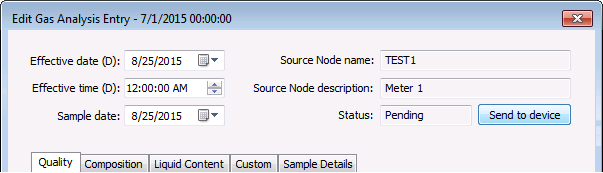
Gas analysis item properties for each entry in the Gas analysis data view can be accessed via the context menu. You can then view or edit records using a series of tabbed property pages.
You must have proper security authorization to edit gas analysis entries. See FMS Security (and DEVCFG security event) for information about configuring security access.
The following gas analysis properties are available when creating, editing, or viewing gas analysis entries.
Use the Record details button to access contiguous records.
The property fields listed below are the same for all pages in the Edit Gas Analysis Entry dialog box.
| Property | Description |
|---|---|
|
Effective date (D) |
Date the gas analysis data is effective, in Device time (D) Default value is <current date> (when opened for editing) |
|
Effective time (D) |
Time the gas analysis data is effective, in Device time (D) Default value is <current time> (when opened for editing) |
|
Sample date (D) |
Date of the gas analysis sample, in Device time (D) |
|
Source Node name |
Name of the source Node for the gas analysis data |
|
Source Node description |
Description of the source Node for the gas analysis data |
|
Status |
Shows the status of any action required for sending the gas quality data to the device (e.g. Succeeded, Review, Pending, Failed, or Timeout) |
|
Send to device Resend to device |
Click Send to device (when Status = "Pending") or Resend to device (when Status = "Succeeded" or "Failed" or "Timeout") to send or resend GQ data from the gas analysis to the device, superseding previous values Note: These options are not available when Status = "Review" until analyst action is taken to resolve it to another state. |
Click the Quality tab to access the property page to view or edit Quality properties for the selected record.
Note: See FMS Configuration Items for more information about specific gas analysis items shown on these property pages.
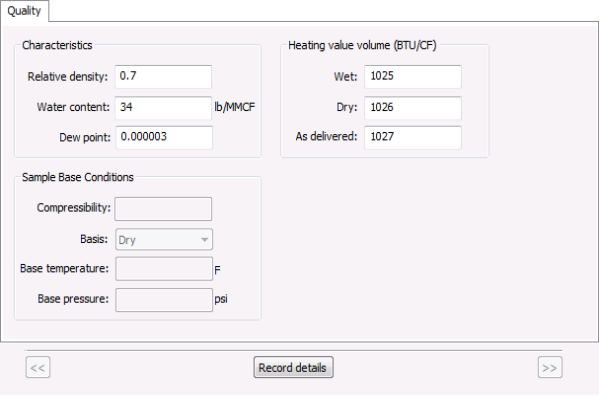
| Property | Description |
|---|---|
| Characteristics | |
|
Relative density |
Relative density |
|
Water content |
Water vapor content (units) |
|
Dew Point |
Dew point |
| Heating value volume (Units) | |
|
Wet |
Heating Value Volume - Wet |
|
Dry |
Heating Value Volume - Dry |
|
As delivered |
Heating Value Volume - As delivered |
| Sample Base Conditions | |
|
Compressibility |
Compressibility |
|
Basis |
The Heating Value Volume basis used Possible values are as follows.
|
|
Base temperature |
Base temperature (units) |
|
Base pressure |
Base pressure (units) |
|
Record details << >> |
If applicable, use the << and >> navigation buttons and the Record details button to select a sequential record span, within the currently displayed control time window, for which you want to view record details. |

Click the Composition tab to access the property page to view or edit Composition properties for the selected record.
Note: See FMS Configuration Items for more information about specific gas analysis items shown on these property pages.
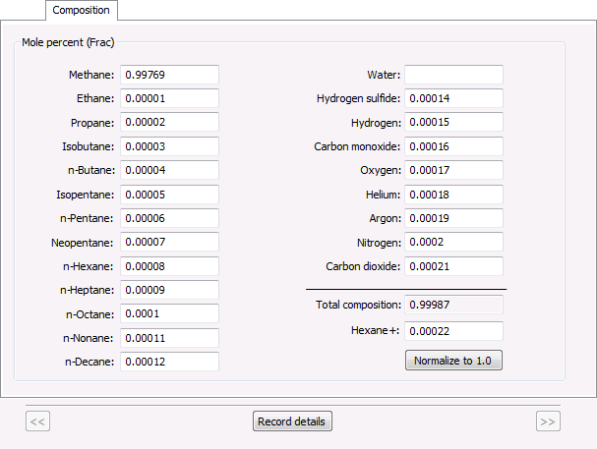
| Property | Description |
|---|---|
| Mole percent (Frac or %) | |
|
Methane |
Methane (C1) |
|
Ethane |
Ethane (C2) |
|
Propane |
Propane (C3) |
|
Isobutane |
Isobutane (isoC4) |
|
n-Butane |
n-Butane (C4) |
|
Isopentane |
Isopentane (isoC5) |
|
n-Pentane |
n-Pentane (C5) |
|
Neopentane |
Neopentane (neoC5) |
|
n-Hexane |
n-Hexane (C6) |
|
n-Heptane |
n-Heptane (C7) |
|
n-Octane |
n-Octane (C8) |
|
n-Nonane |
n-Nonane (C9) |
|
n-Decane |
n-Decane (C10) |
|
Water |
Water (H2O) |
|
Hydrogen sulfide |
Hydrogen sulfide (H2S) |
|
Hydrogen |
Hydrogen (H2) |
|
Carbon monoxide |
Carbon monoxide (CO) |
|
Oxygen |
Oxygen (O2) |
|
Helium |
Helium (He) |
|
Argon |
Argon (Ar) |
|
Nitrogen |
Nitrogen (N2) |
|
Carbon dioxide |
Carbon dioxide (CO2) |
|
Total composition |
Total of mole percent composition values (can also be seen in the gas analysis entry's Total Composition column) |
|
Hexane+ |
n-Hexane plus (C6+) |
|
Normalize to 1.0 Normalize to 100% |
Click to normalize the gas composition data values so that the total value equals 1.0 or 100% (dependent upon the applicable unit set, either Fraction or Percent). Note: When initiated, normalization is performed in compliance with GPA 2172-09, therefore uninvolved component values are normalized to equal "0" when normalization occurs. See CygNet Measurement Data Calculation for more information. |
|
Record details << >> |
If applicable, use the << and >> navigation buttons and the Record details button to select a sequential record span, within the currently displayed control time window, for which you want to view record details. |
Click the Liquid Content tab to access the property page to view or edit Liquid Content properties for the selected record.
Note: See FMS Configuration Items for more information about specific gas analysis items shown on these property pages.
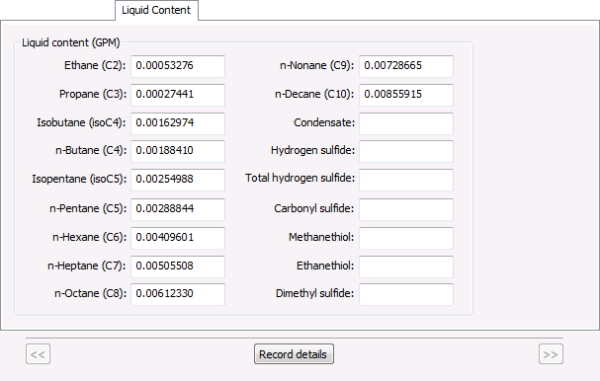
| Property | Description |
|---|---|
| Liquid content | |
|
Ethane (C2) |
Ethane liquid content |
|
Propane (C3) |
Propane liquid content |
|
Isobutane (isoC4) |
Isobutane liquid content |
|
n-Butane (C4) |
n-Butane liquid content |
|
Isopentane (isoC5) |
Isopentane liquid content |
|
n-Pentane (C5) |
n-Pentane liquid content |
|
n-Hexane (C6) |
n-Hexane liquid content |
|
n-Heptane (C7) |
n-Heptane liquid content |
|
n-Octane (C8) |
n-Octane liquid content |
|
n-Nonane (C9) |
n-Nonane liquid content |
|
n-Decane (C10) |
n-Decane liquid content |
|
Condensate |
Condensate liquid content |
|
Hydrogen sulfide |
Hydrogen sulfide PPM |
|
Total hydrogen sulfide |
Total hydrogen sulfide PPM |
|
Carbonyl sulfide |
Carbonyl sulfide PPM |
|
Methanethiol |
Methanethiol PPM |
|
Ethanethiol |
Ethanethiol PPM |
|
Dimethyl sulfide |
Dimethyl sulfide PPM |
|
Record details << >> |
If applicable, use the << and >> navigation buttons and the Record details button to select a sequential record span, within the currently displayed control time window, for which you want to view record details. |
Click the Custom tab to access the property page to view or edit Custom properties for the selected record.
Note: See FMS Configuration Items for more information about specific gas analysis items shown on these property pages.
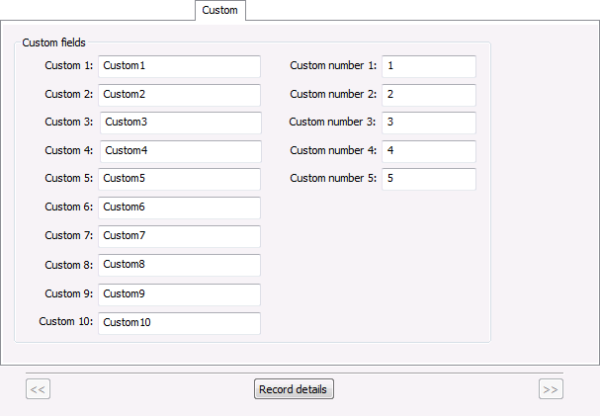
| Property | Description |
|---|---|
| Custom fields | |
|
Custom 1 - Custom 10 |
10 custom-defined FMS fields (each a separate field), as configured; can be mapped to any valid supported gas analysis item containing string values |
|
Custom number 1 - Custom number 5 |
5 custom-defined FMS numerical fields (each a separate field), as configured; can be mapped to any valid supported gas analysis item containing only numerical values |
|
Record details << >> |
If applicable, use the << and >> navigation buttons and the Record details button to select a sequential record span, within the currently displayed control time window, for which you want to view record details. |
Click the Sample Details tab to access the property page to view or edit Sample Details properties for the selected record.
Note: See FMS Configuration Items for more information about specific gas analysis items shown on these property pages.
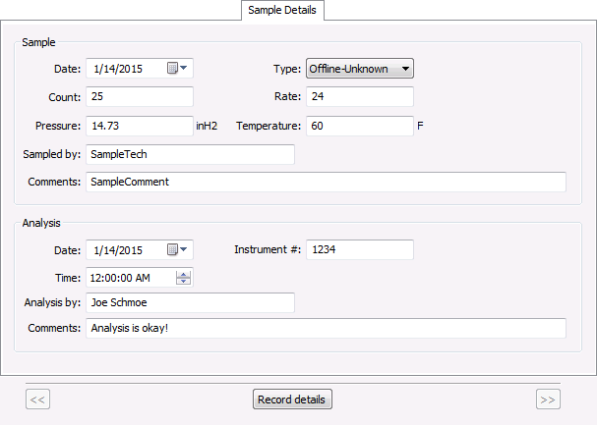
| Property | Description |
|---|---|
| Sample | |
|
Date |
Date of the sample |
|
Type |
Type of sample |
|
Count |
Sample count |
|
Rate |
Sample rate |
|
Pressure |
Pressure value for the sample |
|
Temperature |
Temperature value for the sample |
|
Sampled by |
Name of the sample technician |
|
Comments |
Comments regarding the sample |
| Analysis | |
|
Date |
Date of the analysis |
|
Time |
Time of the analysis |
|
Instrument # |
Number of the instrument used for the analysis |
|
Analysis by |
Name of the technician who performed the analysis |
|
Comments |
Comments regarding the analysis |
|
Record details << >> |
If applicable, use the << and >> navigation buttons and the Record details button to select a sequential record span, within the currently displayed control time window, for which you want to view record details. |
When editing records, each property page provides access to a pair of navigation buttons (<<, >>) and a Record details button at the bottom of the page. You can use this feature to verify auditing information and, if there are multiple records displayed within the current time window shown in the control, to quickly access contiguous gas analysis records.
When there are multiple records available within the time window, use the << and >> navigation buttons to navigate between contiguous records, and find one for which you want to view more concise information about the gas analysis record change(s). As you navigate between records, the current record properties are reflected in the common properties area in the top pane of the dialog box.
Once the desired record is found, click Record details to access the Record Details dialog box where you can view details such as the date and time of the gas analysis record change, the ID of the user who made the change, and optionally the audit category assigned and/or any comments entered regarding the change.
See Viewing Record Details for more information.
|
|
|

